
How to Use Waze in Dubai like a Pro: Driving, Speed Limits & Alerts

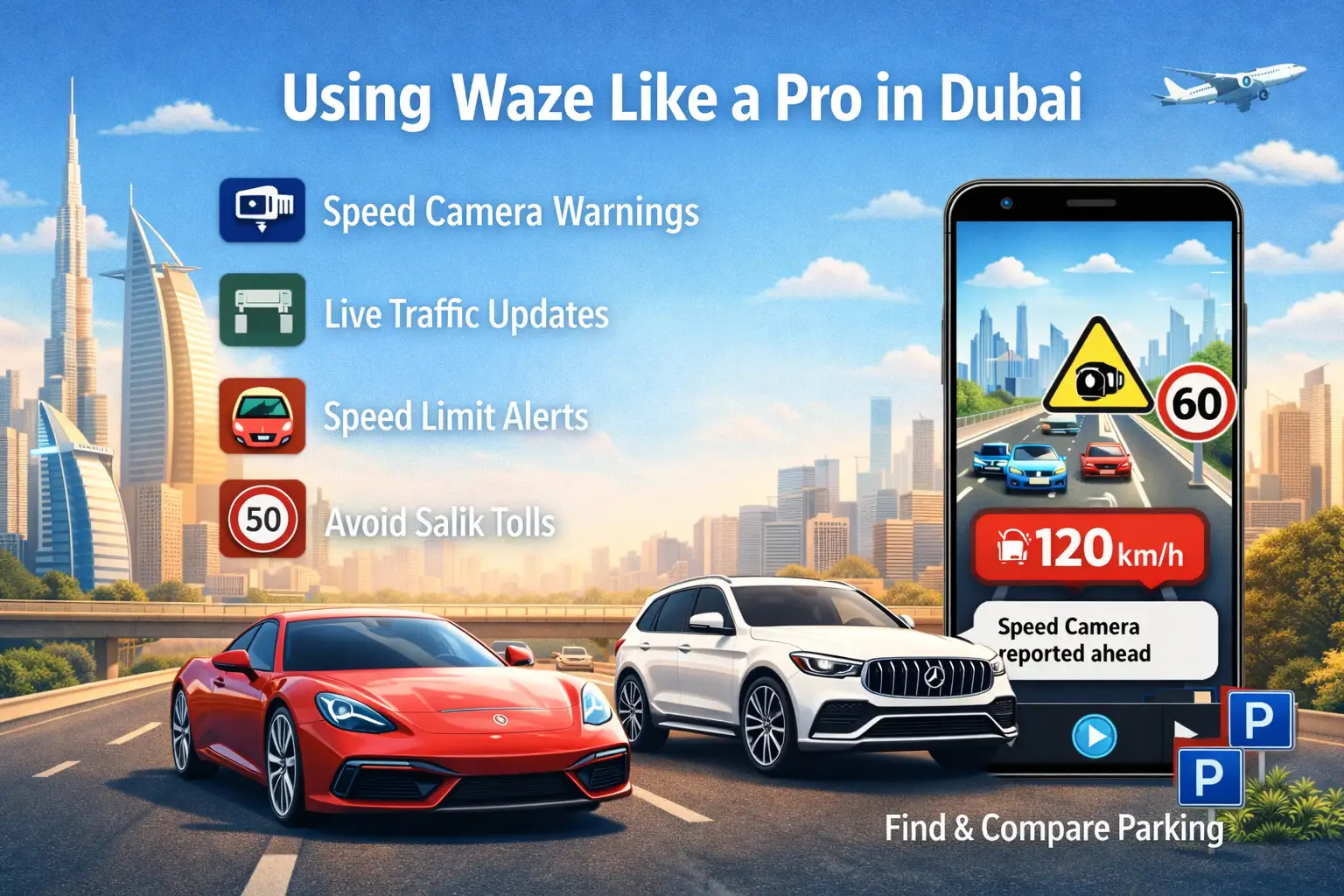
Driving in Dubai means navigating speed cameras, changing traffic conditions, and finding the fastest routes through one of the world's most dynamic cities. That's where Waze becomes essential.
Waze isn't just navigation—it's your co-pilot. It warns you about speed cameras before you see them, shows real-time traffic, alerts you to police checkpoints, and helps you avoid accidents. Whether you're a resident, tourist, or renting a car, Waze is a must-have for Dubai roads.
This guide covers everything: downloading Waze, understanding speed camera alerts, and using it like a pro in Dubai.
Why Waze is Essential for Dubai
Real-Time Speed Camera Alerts: Waze shows every fixed camera on Dubai roads before you reach them, displaying the speed limit and exact location.
Live Traffic Updates: Dubai traffic changes constantly. Waze shows congestion in real-time and automatically reroutes you around it.
Community Reports: Thousands of Dubai drivers report accidents, police, hazards, and road closures instantly. You benefit from everyone's eyes on the road.
Free & Accurate: Completely free with no subscriptions. The app knows Dubai's roads perfectly and updates constantly with new developments.
Download & Setup (2 Minutes)
For iPhone:
- Open App Store
- Search "Waze"
- Install "Waze Navigation & Live Traffic"
- Allow location access when prompted
For Android:
- Open Google Play Store
- Search "Waze"
- Install the app
- Grant location permissions
First-Time Setup:
- Allow location access (required)
- Skip account creation (optional)
- Set home address (helpful but optional)
Understanding the Waze Screen
Main Elements:
Search Bar (Top): Enter destinations like "Dubai Mall" or addresses
Blue Arrow: Your current location and direction
Speed Display (Bottom Left):
- White = Within speed limit
- Orange/Red = Exceeding limit
Report Button (Orange Circle): Report hazards, police, or accidents
ETA Display: Shows arrival time and distance when navigating
How to Navigate
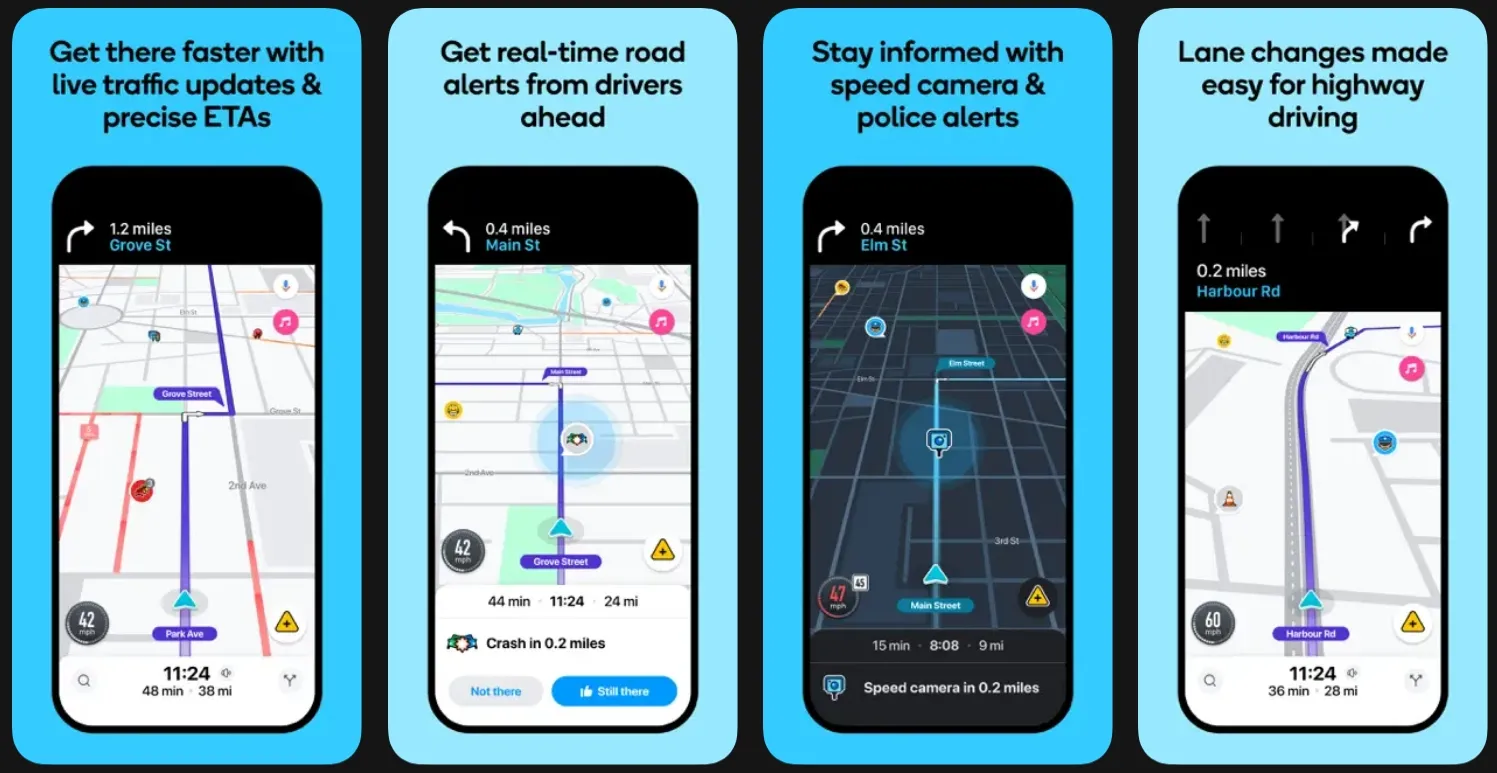
Starting a Route:
- Tap search bar
- Type destination (Dubai Mall, Burj Khalifa, etc.)
- Select from suggestions
- Tap "Go"
- Follow voice and visual directions
Adding Multiple Stops:
- Enter first destination
- Tap "Add a stop"
- Enter additional addresses
- Tap "Go"
Perfect for running errands or sightseeing around Dubai.
Speed Camera Alerts - Most Important Feature
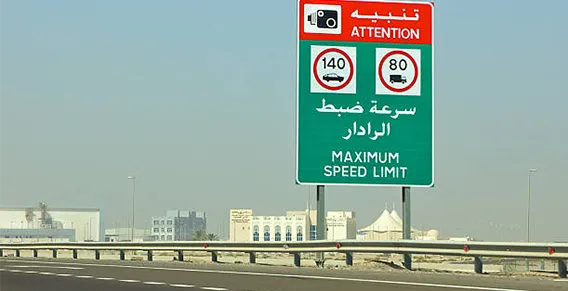
This is why Dubai drivers love Waze.
What You'll See:
When approaching a camera:
- Camera icon on the map ahead
- Speed limit for that section (120 km/h, 100 km/h, etc.)
- Your current speed
- Distance to camera ("Speed camera in 500m")
- Audio alert
Camera Icon Colors:
Gray Icon: Fixed camera ahead (Waze knows exact location)
Red Icon: You're approaching AND speeding—slow down immediately!
Types Waze Detects:
| Camera Type | Alert | Notes |
|---|---|---|
| Fixed Cameras | Exact location | Most common on highways |
| Average Speed | Start/end points | Monitors over distance |
| Mobile Radars | "Police" alert | Driver-reported |
| Red Light | At intersections | Traffic light cameras |
How to Use Alerts:
- Watch speed display (bottom left)
- When you see camera icon, check posted limit
- If speed turns orange/red, slow down
- Waze warns 500-800 meters before cameras
- Resume speed after passing
Important: Waze shows posted limits, not the unofficial 20 km/h buffer. Stick to displayed limits.
Understanding Waze Alerts
🚔 Police Alert: Mobile radars or police presence—slow down
🚗 Accident Alert: Crash ahead—drive cautiously or follow reroute
🚧 Road Hazard: Construction, debris, or closed lanes
Traffic Colors:
- Green: Free-flowing
- Orange: Slowing
- Red: Heavy traffic
- Dark Red: Severe congestion
Reporting Hazards (Help Others)
How to Report:
- Tap orange report button
- Select: Police, Accident, Hazard, or Traffic
- Choose specific type
- Tap "Send"
Other drivers get warned immediately.
When to Report:
- Police cars or mobile radars
- Accidents (any side of road)
- Debris, potholes, or road hazards
- Sudden traffic stops
Safety First: Never report while driving. Have a passenger do it or pull over.
Essential Settings for Dubai
Access Settings: Menu (three lines) → Settings gear icon
Recommended Settings:
Voice & Sound:
- Enable "Alerts" for camera warnings
- Choose preferred language
- Adjust navigation volume
Display:
- Enable "Speed limit" display
- Turn on "Current speed"
- Set units to "km/h"
Navigation:
- Enable "Alternative routes"
- "Avoid toll roads" (skips Salik but adds time)
Pro Features for Dubai
Voice Commands:
- "Hey Waze, navigate to Dubai Mall"
- "Hey Waze, report police"
- "Hey Waze, avoid tolls"
Save Locations:
- Search location
- Tap "Save"
- Choose: Home, Work, or Favorite
- Navigate with one tap later
Parking Assistance:
- Shows parking difficulty at destination
- Nearby parking lots
- Remembers where you parked
Waze vs Google Maps in Dubai
| Feature | Waze | Google Maps |
|---|---|---|
| Speed Cameras | Excellent - shows all | Limited coverage |
| Real-Time Traffic | Very accurate | Good, slight delay |
| Community Reports | Active Dubai users | Fewer reports |
| Offline Maps | Not available | Available |
| Public Transport | No | Yes |
Bottom Line: For driving, Waze wins. For public transport or offline use, Google Maps is better.
Common Issues & Solutions
Speed cameras not showing: Update app to latest version. Check "Alerts" enabled in settings.
GPS inaccurate: Set location to "Always" or "While Using." Restart app.
Battery draining: Use car charger. Lower screen brightness.
No voice directions: Check volume in Waze settings (separate from phone volume).
Still got fined with Waze: New cameras take days to appear. Always watch for physical warning signs.
Dubai-Specific Tips
- Trust speed limit displays - Dubai limits change frequently
- Watch school zones - Cameras active 7-8:30 AM, 2-3:30 PM only
- Use during rush hour (7-9 AM, 5-8 PM) - Saves significant time
- Don't ignore police reports - Usually mobile radars
- Check before long trips - Plan Abu Dhabi or Oman drives
- Save parking spots - Essential at Dubai Mall's massive lots
Using Waze with Rental Cars
Renting a car in Dubai? Waze makes your experience better.
Before Driving:
- Download and set up before pickup
- Test phone mount
- Enter hotel/first destination
During Rental:
- Use for every trip, even short ones
- Speed alerts protect from fines
- Traffic updates maximize efficiency
Whether you're renting a luxury SUV from Solid Cars or any vehicle, Waze keeps you informed and fine-free.
Frequently Asked Questions
1. Is Waze free to use in Dubai?
Yes, Waze is 100% free to use in Dubai. There are no subscriptions or hidden charges—just install the app and start driving.
2. Will Waze warn about all speed cameras?
Waze alerts you about most fixed speed cameras across Dubai. Newly installed cameras may take a few days to appear, so always keep an eye on official road warning signs as well.
3. Does Waze show Salik toll gates?
Yes, Waze clearly shows Salik toll gates. You can also enable “Avoid tolls” in settings, but this may increase your travel time.
4. Is Waze better than Google Maps for Dubai?
For driving, yes—Waze is usually better thanks to speed camera alerts, live traffic updates, and user reports. For public transport and walking, Google Maps is still the better option.
5. Can Waze help find parking?
Yes, Waze shows parking availability, difficulty ratings, and nearby parking areas in many locations.
Final Thoughts
Waze transforms Dubai driving from stressful to smooth. Speed camera warnings help you avoid expensive fines, real-time traffic saves time daily, and community reports keep you informed about hazards and police presence.
Whether you're commuting, exploring Dubai's attractions, or renting a luxury car for a special occasion, Waze is essential. Download it, learn the basics, and you'll wonder how you ever drove in Dubai without it.
Ready to explore Dubai's roads?
Download Waze and drive smarter. Need a premium vehicle? Check out Solid Car's luxury rental fleet—from family SUVs to exotic sports cars.
Drive safe and let Waze guide you! 🚗📱✨